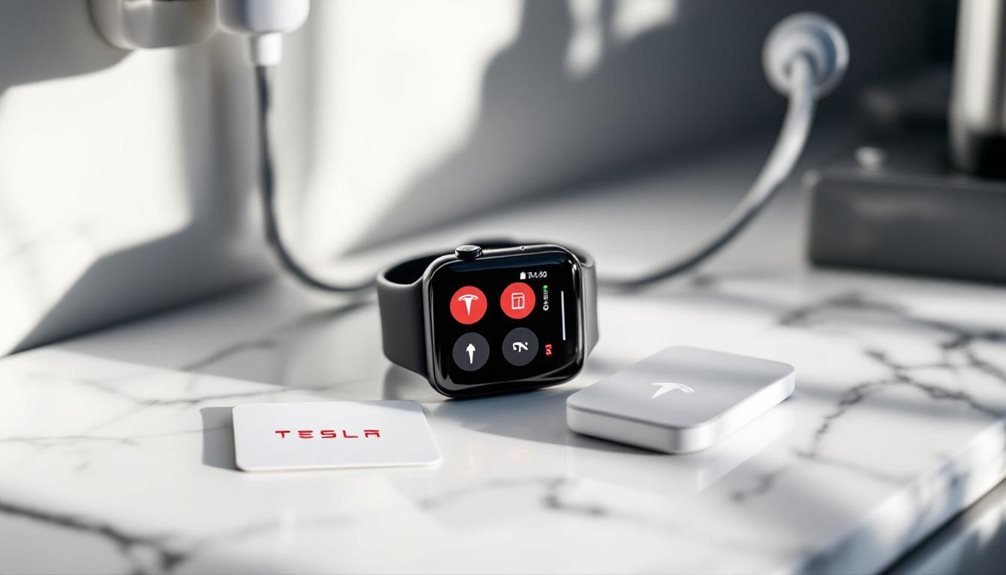
Tesla’s Apple Watch app launched in 2025, but getting it on your wrist isn’t exactly plug-and-play. You’ll need an Apple Watch Series 6 or newer with WatchOS 11.0, Tesla iPhone app version 4.39.5, and your vehicle must have the 2024.44 Holiday Update installed. Update the Tesla iOS app first, then enable it through your iPhone’s Watch app. Open Tesla, tap “Pair Watch,” and wait about seven seconds for connection. The complete setup process reveals additional features worth probing.
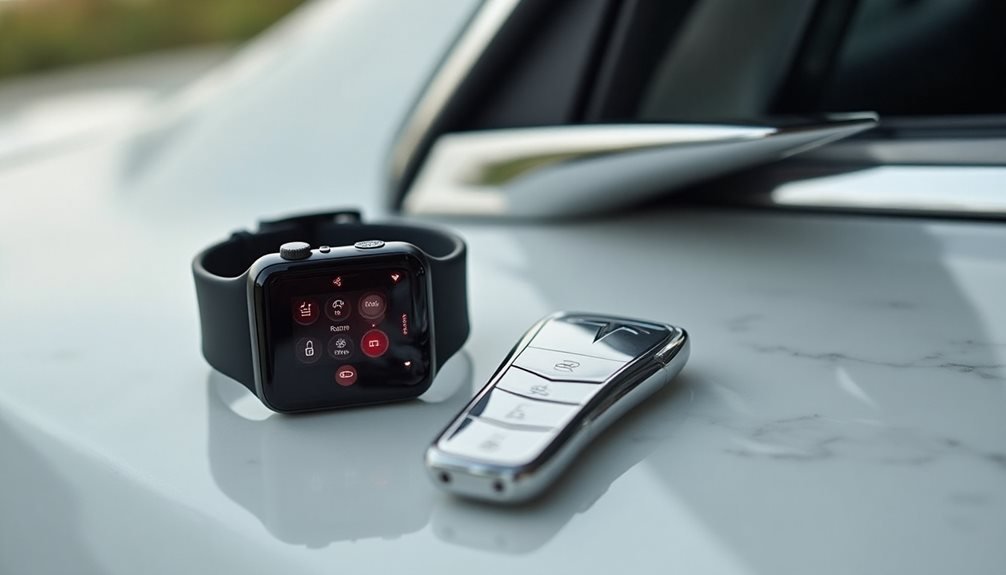
While Tesla owners have been fumbling with their phones to unlock cars for years, 2025 finally brings the obvious solution nobody asked for but everyone secretly wanted. The Tesla Apple Watch app has arrived, and it’s surprisingly straightforward to set up.
First, check if your gear can handle this technological marvel. Apple Watch Series 6, SE2, Ultra 1, or newer models work. The watch needs watchOS 11.0 or later. Tesla app version 4.39.5 is required on your iPhone. Your vehicle must have the 2024.44 Holiday Update installed. No exceptions.
Installation takes about as long as microwaving leftovers. Update the Tesla iOS app to version 4.39.5 first. Open the Watch app on your iPhone, scroll down to Tesla, and enable it. Launch the Tesla app and select “Pair Watch.” The process completes in 5-7 seconds. That’s it. The Tesla icon appears on your Apple Watch face like magic. For those off-grid adventures when traditional charging isn’t available, generators can provide AC power output sufficient to maintain your Tesla’s battery between remote destinations. Additionally, if you encounter any issues with your Tesla, you can schedule Tesla mobile service easily through the app. This convenient feature allows you to arrange for a technician to come to your location, ensuring your vehicle stays in optimal condition. Whether at home or on the road, managing your Tesla’s needs has never been more straightforward.
The features are exactly what you’d expect from a company that puts rocket thrusters on sports cars. Watch Key functionality lets you *access* and lock your vehicle without touching your phone. Remote frunk and trunk access works from your wrist. Battery percentage displays instantly. Climate control activation means your car can be perfectly temperature-controlled before you arrive. The charge port opens and closes remotely because apparently walking three extra steps is too much effort. Additional controls like horn honking and light flashing are available directly from the watch interface.
Every Tesla model supporting the Holiday Update works with this setup. Your iPhone must be paired with the Apple Watch for everything to function properly. The app requires an Apple S6 processor or better, which means older watches are out of luck. If you own multiple vehicles, tap the top-right corner to switch between different Tesla vehicles and energy products.
Tesla promises future updates with customizable interfaces, new features, and possible watch face complications. Early launch issues might get addressed through firmware updates, though Tesla’s track record with timely fixes remains questionable.
If the app disappears or acts glitchy, force restart the Apple Watch or re-pair the devices. Check that all software versions meet requirements. When nothing works, Tesla support exists, theoretically. The future of wrist-based car control has arrived, whether civilization was ready or not.
Frequently Asked Questions
Does the Tesla Apple Watch App Work Without My Iphone Nearby?
The Tesla Apple Watch app barely functions without an iPhone nearby. Basic stuff like checking battery percentage might stick around briefly, but forget about actually controlling anything.
Want to open doors or start preconditioning? Need that iPhone connection. The Watch fundamentally becomes a fancy, expensive status display.
Cellular Apple Watch models can help somewhat, but they’re still pretty limited compared to having the iPhone right there.
Can I Use the App With Multiple Tesla Vehicles on One Watch?
The Tesla Watch app supports multiple vehicles under one account, mirroring the iPhone app’s logic. Users can manage several Teslas but need to manually select which vehicle they want to control through the Watch interface.
Each car likely requires its own Watch Key setup. Tesla’s documentation doesn’t explicitly confirm all multi-vehicle features work seamlessly on the Watch yet.
Will the Tesla App Drain My Apple Watch Battery Significantly?
The Tesla Apple Watch app won’t markedly drain battery, according to users with Apple Watch Ultra on watchOS 11.1. Brief checks barely impact power usage.
However, frequent interactions like refreshing or sending commands wake up both watch and vehicle, consuming more juice. Live camera feeds and prolonged use will drain faster.
It’s basically like any other app – moderate usage means moderate drain.
Does the App Work With Older Apple Watch Models?
The official Tesla app requires Apple Watch Series 6, SE 2nd Gen, Ultra 1st Gen, or newer models.
Older watches like Series 5? Tough luck. They can’t run watchOS 11, which the app demands.
Third-party options like “Watch for Tesla” exist for older models, offering basic key fob functions for around $20.
It’s not Tesla’s fault—older hardware simply lacks the framework needed.
Can I Start My Tesla Remotely if It’s in a Garage?
Remote starting a Tesla in a garage depends entirely on cellular connectivity. If the vehicle maintains a strong signal inside the garage, remote preconditioning and climate control work fine through the Apple Watch app.
Weak signals kill the functionality completely. Premium Connectivity users have better odds, but garages are notorious signal dead zones.
The watch app requires the same cellular connection as the phone app – no signal, no remote start.