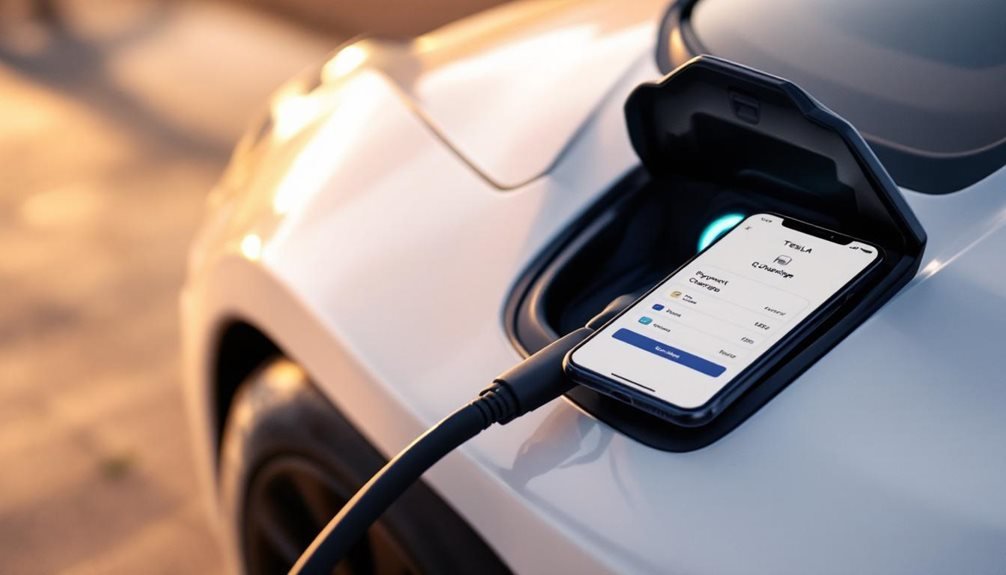

Tesla owners set up charging payments by opening the app, tapping the top-right menu, selecting “Charging,” then “Manage Payment.” Users add credit or debit cards with standard details like name, number, expiry, and CVV. The app accepts major networks including Visa, Mastercard, and American Express. Multiple cards can be stored, with one designated as primary for automatic billing. Card verification happens during setup to prevent fraud. The process covers everything from Superchargers to managing multiple payment methods seamlessly.

The Tesla app has turned paying for charging into something that’s actually pretty straightforward, which is invigorating considering how complicated everything else about electric vehicles seems to be. Setting up payment starts with opening the app, tapping the menu in the top-right corner, selecting “Charging,” then “Manage Payment.” Revolutionary stuff, clearly.
Adding a payment method requires the usual suspects: credit or debit card details including name, number, expiry date, CVV, and zip code. Tesla accepts major networks like Visa, Mastercard, and American Express. Multiple cards can be stored, and users can designate one as the primary payment method for automatic charges. Card verification happens during setup because, apparently, people sometimes lie about having money.
Card verification happens during setup because, apparently, people sometimes lie about having money.
The default payment configuration lives in the Wallet settings under “Manage Payment.” Users can prioritize cards and update the default method by selecting a card and choosing “Set as Default.” Existing subscriptions automatically debit from saved cards, which works until it doesn’t. Removing the default payment method requires adding a replacement first—Tesla won’t let drivers delete their way into payment limbo.
Supercharger payment updates follow the same path through “Charging” and “Manage Payment.” Users can edit or delete existing cards, though replacing cards requires adding the new one before removing the old. The billing address must match card details to avoid declined payments. The system requires the billing address to match your card details precisely to prevent payment processing errors. Revolutionary concept.
Non-Tesla vehicles can access Superchargers using NACS adapters. Ford drivers get FordPass integration with the Blue Oval Charge Network for Plug & Charge functionality. Tesla account usage might provide lower charging costs compared to guest mode payments. Third-party networks work through app payment methods, and mobile payments like Apple Pay or Google Wallet integrate through the app wallet. Manual card entry remains available on-site when the app decides to take a break.
Charge session notifications include alerts when charging starts, fee estimates during sessions, idle fee warnings, post-session summaries, and payment confirmations. Idle fees kick in when vehicles remain connected more than five minutes after charging completes, but only when occupancy hits fifty percent or higher. While Tesla owners can use Superchargers conveniently, they should avoid offering jump-start assistance to drivers of conventional gas vehicles to prevent potential damage to their EV’s electrical systems.
Tesla requires an account for app-based payments, and declined payment issues get resolved through Tesla Support—assuming they’re feeling helpful that day.
Frequently Asked Questions
Can I Use Multiple Payment Methods for a Single Charging Session?
Tesla doesn’t allow multiple payment methods for a single charging session. Period. Users get stuck with whatever default card they’ve set in the app’s wallet section.
Want to use a different card? Too bad – they’ll need to manually switch the default before plugging in.
No real-time payment switching exists during active sessions.
It’s frustrating for people juggling work and personal cards, but that’s Tesla’s current limitation.
What Happens if My Primary Payment Method Fails During Charging?
When the primary payment method fails, charging pauses immediately.
No automatic fallback happens—Tesla doesn’t switch to secondary cards automatically.
The driver must manually select another payment method through the app’s charging interface.
Error messages pop up on the car screen and app with red warning icons.
After fixing the payment issue, there’s typically a 30-minute delay before the system updates, then charging can restart.
Are There Any Fees for Using the Tesla App Payment System?
The Tesla app doesn’t charge fees for payment processing itself. However, idle fees kick in when you hog a Supercharger spot— вони doubles if the station’s packed.
Public charging rates vary wildly by region and can exceed what you’d pay at home. Peak rates bite hard.
Tesla hides the actual per-kWh pricing from the app, only showing it on your car’s screen.
Membership subscriptions cost extra but release lower rates.
Can I Share My Tesla Account Payment Method With Family Members?
Tesla accounts operate independently, so users can’t directly share payment methods with family members. Each person needs their own Tesla account with their own payment method added.
The primary account holder gets stuck with charges if secondary users don’t set up their own cards. Tesla automatically bills the primary account when others lack payment methods.
Gift cards offer a workaround for funding family accounts without sharing actual credit cards.
How Do I Get Refunds for Overcharged or Incorrect Billing Amounts?
Tesla owners hit with bogus charges have options. Submit refund requests through the Tesla Shop returns portal – expect 7-10 business days for processing.
Money goes back to the original payment method, except gift cards become account credit.
If Tesla drags their feet, owners can file chargebacks through their bank. Fair warning though: Tesla might restrict Supercharging access if they’re feeling petty about disputes.