
Tesla owners can remotely view their vehicle’s cameras through the mobile app, but there’s a catch. First, enable “View live camera via mobile app” in the car’s Safety settings under Sentry Mode. The feature only works when Sentry Mode is actually running—no Sentry Mode, no live feed. Open the Tesla app, tap “Live Camera,” and select individual camera views including front, rear, side, and interior angles. The setup evolves any Tesla into a smartphone-controlled surveillance system with surprising capabilities.
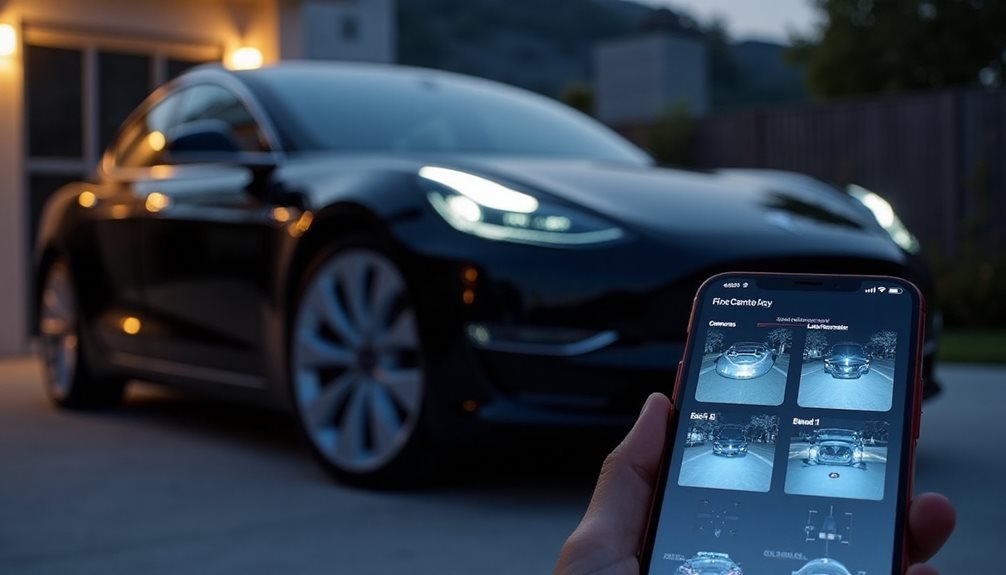
Why would anyone want to spy on their own car? Tesla owners have their reasons, and the company makes it surprisingly easy to turn your phone into a mobile surveillance system.
Tesla transforms smartphones into car surveillance systems, making remote monitoring as simple as opening an app and tapping a few buttons.
The process starts in the vehicle itself. Owners need to steer to Sentry Mode or Dashcam settings through the car’s menu by tapping the Car icon, then Safety. The key step is enabling “View live camera via mobile app” to activate remote access functionality. Sentry Mode must already be running for live footage streaming to work. No Sentry Mode, no spy games.
Once the car is configured, the Tesla app becomes the command center. The home screen displays a Live Camera option that’s hard to miss. Users can view specific cameras manually by selecting individual camera icons for front, rear, and side views. It’s like having security guards positioned around the vehicle, except they never ask for bathroom breaks. Camera options also include interior cameras for monitoring the inside of the vehicle.
For those who prefer recorded evidence over live drama, saved footage requires some preparation. A USB drive formatted as exFAT must be inserted before any recordings happen. The Tesla app’s Dashcam section then displays saved 30-second clips from the USB storage. Think of it as your car’s personal highlight reel. Video recordings are saved locally on USB and are not transmitted to Tesla’s servers.
Tesla hasn’t skimped on security features. Live feeds use end-to-end encryption, meaning Tesla and third parties can’t peek at the footage. When someone activates live viewing, the car’s headlights pulse and the touchscreen shows active monitoring. The system provides real-time alerts to the owner’s smartphone when suspicious activity is detected. Subtle as a neon sign.
The company offers some convenience features too. The Dashcam app can be pinned to the vehicle’s bottom bar for quick access. No hunting through menus when something interesting happens outside.
There are practical considerations, naturally. Live streaming consumes cellular data, which impacts data plans when Wi-Fi isn’t available. The feature also raises legal questions since users must comply with local laws regarding camera use and data capture.
Tesla has basically turned every vehicle into a mobile surveillance unit controlled by smartphone. Whether that’s progress or paranoia depends on viewpoint.
Frequently Asked Questions
Can I View Live Tesla Camera Footage When the Car Is Parked?
Yes, Tesla owners can view live camera footage when their car is parked, but there’s a catch. They need a Premium Connectivity subscription, the latest Tesla app, and Sentry Mode enabled.
The car must be locked with no one inside. There are daily time limits – one hour in most places, just 15 minutes in some regions. It’s basically remote surveillance with strings attached.
Does Viewing Tesla Cameras Through the App Drain the Car’s Battery?
Viewing Tesla cameras through the app does drain the car’s battery, especially with Sentry Mode running continuously. The drain becomes noticeable during longer sessions.
Tesla isn’t completely reckless here—the system automatically shuts off Sentry Mode when battery hits 20%. Some users claim minimal impact from brief viewing, but prolonged monitoring will definitely eat into range.
The smartphone also takes a hit, losing 17-51% battery daily with frequent app use.
Can Multiple People Access the Same Tesla’s Cameras Simultaneously?
Multiple people can’t simultaneously access the same Tesla’s live camera feeds. Tesla’s app restricts camera viewing to individual accounts, and there’s no official support for concurrent access.
While the primary owner can add secondary drivers through “Manage Drivers,” each user needs separate permissions for camera access.
The system appears designed for single-user sessions, likely due to bandwidth limitations and security protocols.
Users basically have to take turns.
Is There a Data Usage Limit for Viewing Tesla Cameras Remotely?
Tesla doesn’t impose specific data usage limits, but they cap viewing time instead. Users get 90 minutes daily in most regions, though some areas drop to just 15 minutes.
The company clearly prioritizes data costs over user convenience. Cellular networks enforce these restrictions more strictly than Wi-Fi connections.
No audio transmission helps reduce bandwidth consumption, but continuous video streaming still burns through data quickly.
Can I Save or Record Footage Directly to My Phone?
Yes, Tesla owners can save dashcam and Sentry Mode clips directly to their phone through the Tesla app.
The feature streams footage from the vehicle’s USB drive to phone storage.
Android support arrived in version 4.43.5, matching iPhone capabilities.
However, there’s a catch – it requires stable internet connectivity and manual access per session.
No background downloading, no live recording.
Just stored clips transferred one by one.