
Tesla doesn’t actually use Google Maps for guidance the way most people think it does. The company relies on MapBox for routing while using Google Maps as a background layer—basically painting their directions over Google’s map canvas. This hybrid approach often produces questionable route suggestions that lag behind Google’s real-time updates. Tesla owners can share locations from Google Maps through the app, but the integration feels clunky and requires workarounds that reveal the system’s deeper intricacies.
Why does Tesla’s guidance system feel like it’s stuck in 2019 while Google Maps keeps getting smarter? The answer lies in Tesla’s complicated relationship with mapping technology that’s part partnership, part independence movement.
Tesla doesn’t actually use Google Maps for guidance. Instead, the company relies on MapBox for its routing algorithms while using Google Maps only for foundational cartography. Think of it like using someone else’s canvas but painting your own portrait. The navigation system operates independently of Google Maps routing, which explains why Tesla owners often scratch their heads at questionable route suggestions.
Tesla paints its own navigation portrait on Google’s canvas, creating those head-scratching route suggestions that leave owners bewildered.
Real-time traffic integration tells a messier story. Tesla may draw from Google Maps for live updates in certain contexts, but the primary guidance calculus happens elsewhere. This hybrid approach creates those moments when your Tesla confidently directs you into a traffic nightmare that Google Maps would have avoided entirely.
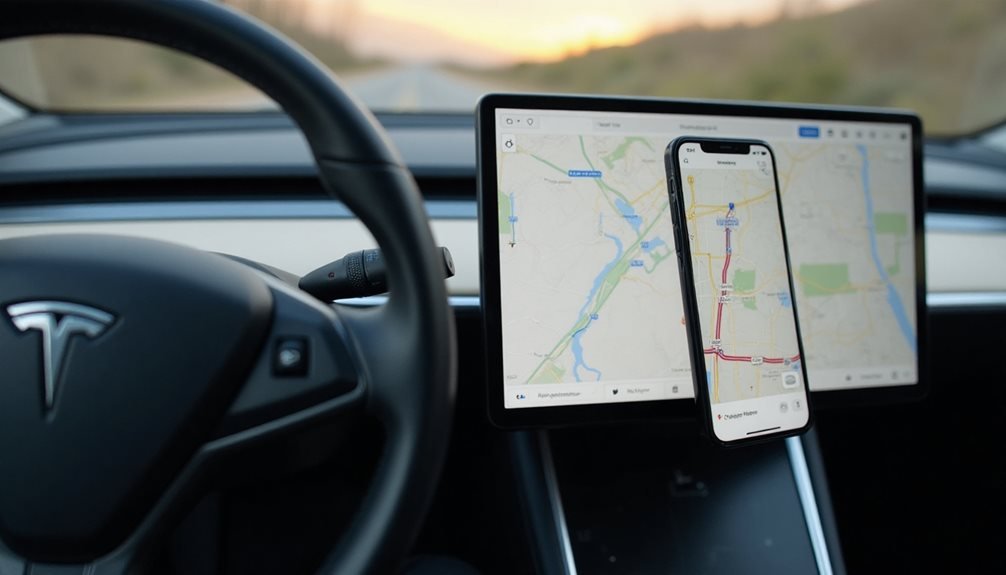
The integration methods between the two systems feel like digital duct tape. Tesla owners can share locations from Google Maps via the Tesla app, and voice commands can interpret Google Maps-derived destination requests. Syncing personal devices provides access to saved Google Maps locations within Tesla’s interface, but it’s hardly seamless. Many resort to third-party workarounds, manually entering destinations after double-checking with Google Maps. The sharing process allows routes planned in Google Maps to transfer directly to Tesla’s navigation system through the mobile app. Users can also access their saved favorites directly through Tesla’s interface when properly synchronized. Additionally, the adoption of features like the ‘Tesla valet mode features explained‘ helps streamline the user experience, offering enhanced control while maintaining security. However, as these functionalities evolve, it remains essential for Tesla to improve the integration with Google Maps to enhance usability. Users are hopeful for more intuitive solutions that will alleviate the need for manual entry altogether.
Here’s where things get frustrating. Travel time predictions from Google Maps are frequently reported as more precise than Tesla’s estimates. Street name corrections lag in Tesla’s system compared to Google Maps’ more frequent updates. Route optimization prioritizes Tesla-specific algorithms over Google Maps’ user-customizable options, meaning you can’t avoid highways even when you desperately want to.
The practical workarounds reveal the system’s limitations. Premium Connectivity unlocks satellite map overlay access, but many users end up prioritizing phone guidance, essentially using Google Maps on their mobile device as the primary system. Address precision occasionally pulls updated information from Google Maps for precise coordinates, but map accuracy varies wildly. Tesla owners can access entertainment features like the Light Show through the vehicle’s touchscreen for coordinated displays.
Some users report seriously outdated information in Tesla’s system compared to Google Maps, making manual data entry a necessary evil.
Frequently Asked Questions
Can I Download Offline Maps for Tesla Navigation When No Internet Available?
Tesla drivers cannot manually download offline maps like they would on their smartphones. The car automatically stores map data through over-the-air updates, but users have zero control over this process.
Unlike Google Maps on phones, there’s no “download for offline use” button. Tesla handles everything behind the scenes.
When internet disappears, drivers are stuck with whatever map data was previously downloaded automatically.
Does Tesla Navigation Work in All Countries Where Tesla Vehicles Are Sold?
Tesla route guidance doesn’t work everywhere Tesla sells cars. Coverage gets patchy outside North America and Europe. China uses Baidu Maps instead of Google.
Middle East, Africa, and South Asia? Information’s basically non-existent, suggesting major gaps. Even in supported regions, features roll out unevenly – lane guidance isn’t available everywhere yet.
Premium Connectivity requirements also limit functionality globally. It’s frustratingly inconsistent.
How Often Does Tesla Update Their Navigation Maps and Traffic Data?
Tesla updates route planning maps roughly twice per year, though there’s no fixed schedule. The rollouts happen gradually by region and vehicle model.
Traffic data gets streamed in real-time when connected, which is separate from the static map updates.
Here’s the kicker – if your maps get over a year old, you’ll need to manually connect to Wi-Fi since these updates are multi-gigabyte files.
Can I Use Voice Commands to Control Tesla’s Built-In Navigation System?
Tesla owners can absolutely control routing through voice commands. Just say “Hey Tesla” and the system springs to life, ready for natural speech commands.
Users can search for addresses, points of interest, or saved favorites without touching the screen. The system handles route adjustments and real-time traffic updates too.
It’s surprisingly intuitive—no robot-speak required.
Is It Possible to Sync Favorite Destinations Between Tesla App and Car?
Tesla owners can synchronize favorite destinations between the Tesla app and their car, but there’s a catch. The sync only works one way – from the app to the vehicle.
Users can save destinations in the Tesla app and send them to the car’s guidance system.
However, favorites saved directly in the car won’t automatically appear in the app.
It’s a frustrating limitation that feels oddly incomplete.